
Tip Tuesday
How to Set Up Pending PO Workflows in Vista (Without Losing Your Sanity)
Seamless PO approvals in your Vista Web Portal


Let’s be honest, setting up purchase order workflows in Vista can feel a bit like trying to solve a Rubik’s Cube blindfolded.
But if your field crews want to create Pending Purchase Orders using the Vista Web Portal, setting up a Workflow Process isn't optional, it’s mandatory.
The good news? Once you get the hang of it, Vista’s PO workflow engine acts like an automated security guard at your company’s front gate, making sure small tool runs get approved fast while keeping massive $50k+ expenditures from flying under the radar.
Here is a super simple, real-world example of how to build a multi-tiered PO approval matrix in Vista and watch the magic happen in the web portal.
The Game Plan: Who Approves What?
We want our purchase orders to route automatically based onhow much money is being spent:
- $1.00 (The "Did someone order coffee or a box of nails?" level):
- Routes to the Project Admin (PA).
- Up to $20,000 (The "Standard job materials" level):
- Routes to the Project Manager (PM_SHOP).
- Up to $50,000 (The "Okay, now we're spending real money" level):
- Routes to a designated Power User / Senior Manager.
- Over $50,000 (The "I need to look the boss in the eye" level):
- Escalates all the way to the CEO (up to $9,999,999.00).
Step 1: Set Up the Workflow Process in Vista
Head into WF Workflow Process in Vista to lay down the law:
- Process Name: Call it something memorable, like PO_CTC Shop.
- Workflow Steps: Map out the approval tiers:
- Seq 1 (Step 1): Approver Type: Role | Role: PA | Approval Limit: $1.00
- Seq 2 (Step 2): Approver Type: User | Specific Designated User | Approval Limit: $50,000.00
- Seq 3 (Step 2): Approver Type: Role | Role: PM_SHOP | Approval Limit: $20,000.00
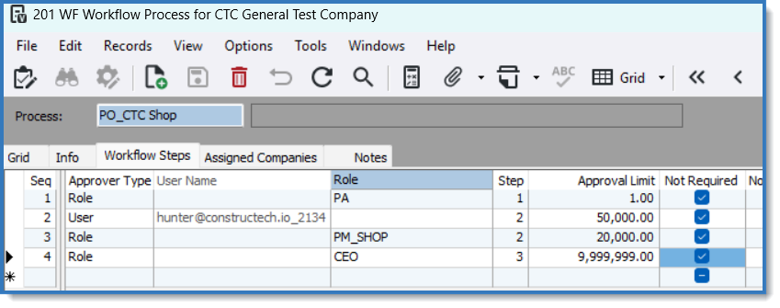
TIP: Grouping both the $20k PM role and the $50k User step under Step 2 allows Vista to dynamically evaluate limit thresholds so higher-ups only get pinged when the total crosses their line in the sand!
Step 2: Tie the Workflow to Your Job
A workflow sitting in Vista doing nothing is like a guard dog taking a nap. You have to assign it to a job!
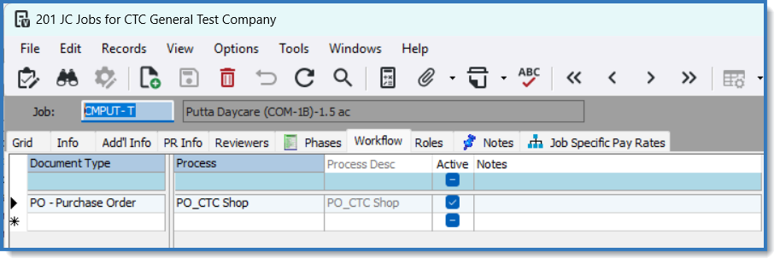
- Open JC Jobs and grab your active job (e.g., CMPUT-T - Putta Daycare)
- Click over to the Workflow tab.
- Add a row for Document Type: PO - Purchase Order
- Select Process: PO_CTC Shop and check that glorious Active box
Step 3: The Magic in Action (Vista Web Portal)
When your field team opens up the Vista Web Portal to submit a Pending PO, Vista instantly calculates the total dollar amount and displays the exact approval staircase on screen:
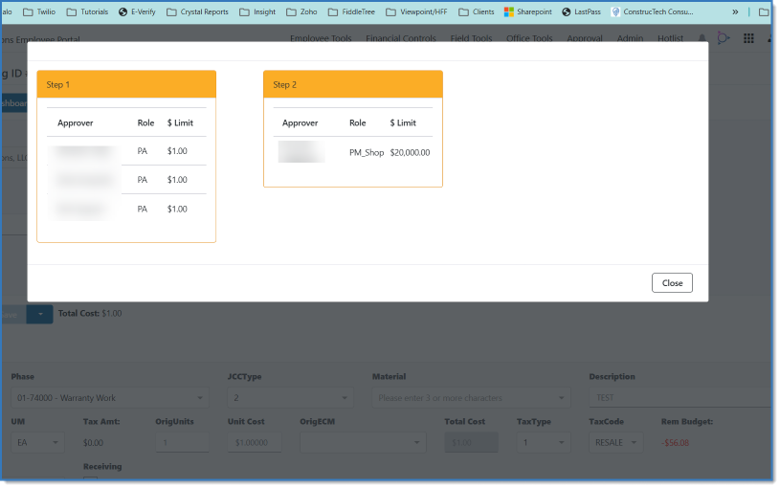
Scenario A: The $1.00 Purchase Order
Only triggering the basics!
- Step 1: PA ($1.00 Limit)
- Step 2: PM_SHOP ($20,000.00 Limit)
Scenario B: The $21,000.00 Purchase Order
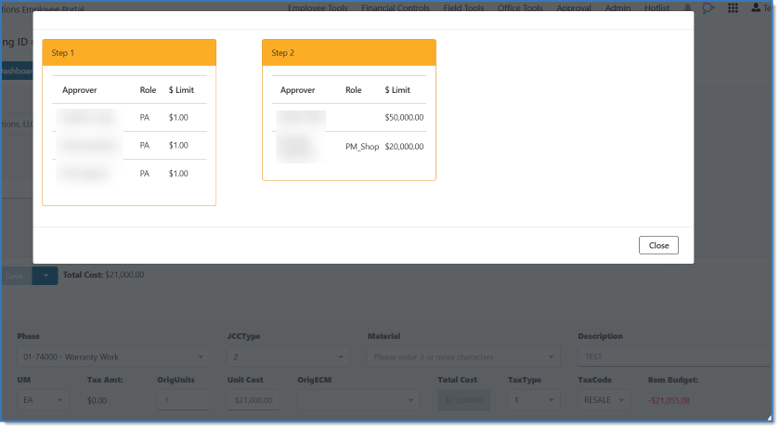
Since $21,000 exceeds the PM’s $20,000 cap, Vista automatically loops in the $50k designated approver at Step 2:
- Step 1: PA ($1.00 Limit)
- Step 2: PM_SHOP ($20,000.00 Limit) + Designated Approver ($50,000.00 Limit)
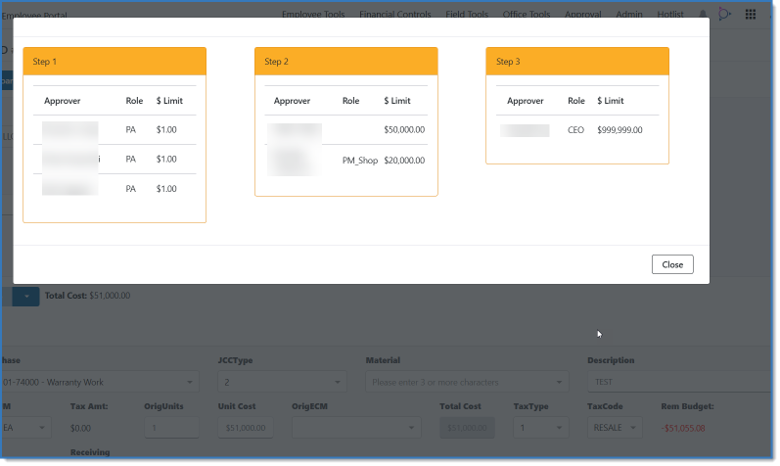
Scenario C: The $51,000.00 Purchase Order
Big spender alert! Crossing $50,000 triggers the entire approval chain, unlocking Step 3 executive sign-off:
- Step 1: PA ($1.00 Limit)
- Step 2: PM_SHOP ($20,000.00) & Designated Approver ($50,000.00)
- Step 3: CEO ($9,999,999.00 Limit)
Why This Saves Your Business
- Zero Surprise Expenses: Budget thresholds are enforced automatically before money is spent.
- No Field Confusion: Field personnel see right in the portal who holds the approval mic for their exact PO.
- Complete Flexibility: Tailor routing rules job-by-job depending on project scale or contract rules.
Feeling Stuck in Workflow Setup?
Setting up custom approval rules, user roles, and web portal routing in Vista can get tangled fast, especially when dealing with multi-company rules or complex job hierarchies.
If you'd rather spend your time running projects instead of fighting with workflow setup, ConstrucTech Consulting is here to help! Whether you need custom Vista workflow configurations, portal optimization, or hands-on training for your team, reach out to us today and let's get your systems running smoothly.
Let’s be honest, setting up purchase order workflows in Vista can feel a bit like trying to solve a Rubik’s Cube blindfolded.
But if your field crews want to create Pending Purchase Orders using the Vista Web Portal, setting up a Workflow Process isn't optional, it’s mandatory.
The good news? Once you get the hang of it, Vista’s PO workflow engine acts like an automated security guard at your company’s front gate, making sure small tool runs get approved fast while keeping massive $50k+ expenditures from flying under the radar.
Here is a super simple, real-world example of how to build a multi-tiered PO approval matrix in Vista and watch the magic happen in the web portal.
The Game Plan: Who Approves What?
We want our purchase orders to route automatically based onhow much money is being spent:
- $1.00 (The "Did someone order coffee or a box of nails?" level):
- Routes to the Project Admin (PA).
- Up to $20,000 (The "Standard job materials" level):
- Routes to the Project Manager (PM_SHOP).
- Up to $50,000 (The "Okay, now we're spending real money" level):
- Routes to a designated Power User / Senior Manager.
- Over $50,000 (The "I need to look the boss in the eye" level):
- Escalates all the way to the CEO (up to $9,999,999.00).
Step 1: Set Up the Workflow Process in Vista
Head into WF Workflow Process in Vista to lay down the law:
- Process Name: Call it something memorable, like PO_CTC Shop.
- Workflow Steps: Map out the approval tiers:
- Seq 1 (Step 1): Approver Type: Role | Role: PA | Approval Limit: $1.00
- Seq 2 (Step 2): Approver Type: User | Specific Designated User | Approval Limit: $50,000.00
- Seq 3 (Step 2): Approver Type: Role | Role: PM_SHOP | Approval Limit: $20,000.00
TIP: Grouping both the $20k PM role and the $50k User step under Step 2 allows Vista to dynamically evaluate limit thresholds so higher-ups only get pinged when the total crosses their line in the sand!
Step 2: Tie the Workflow to Your Job
A workflow sitting in Vista doing nothing is like a guard dog taking a nap. You have to assign it to a job!
- Open JC Jobs and grab your active job (e.g., CMPUT-T - Putta Daycare)
- Click over to the Workflow tab.
- Add a row for Document Type: PO - Purchase Order
- Select Process: PO_CTC Shop and check that glorious Active box
Step 3: The Magic in Action (Vista Web Portal)
When your field team opens up the Vista Web Portal to submit a Pending PO, Vista instantly calculates the total dollar amount and displays the exact approval staircase on screen:
Scenario A: The $1.00 Purchase Order
Only triggering the basics!
- Step 1: PA ($1.00 Limit)
- Step 2: PM_SHOP ($20,000.00 Limit)
Scenario B: The $21,000.00 Purchase Order
Since $21,000 exceeds the PM’s $20,000 cap, Vista automatically loops in the $50k designated approver at Step 2:
- Step 1: PA ($1.00 Limit)
- Step 2: PM_SHOP ($20,000.00 Limit) + Designated Approver ($50,000.00 Limit)
Scenario C: The $51,000.00 Purchase Order
Big spender alert! Crossing $50,000 triggers the entire approval chain, unlocking Step 3 executive sign-off:
- Step 1: PA ($1.00 Limit)
- Step 2: PM_SHOP ($20,000.00) & Designated Approver ($50,000.00)
- Step 3: CEO ($9,999,999.00 Limit)
Why This Saves Your Business
- Zero Surprise Expenses: Budget thresholds are enforced automatically before money is spent.
- No Field Confusion: Field personnel see right in the portal who holds the approval mic for their exact PO.
- Complete Flexibility: Tailor routing rules job-by-job depending on project scale or contract rules.
Feeling Stuck in Workflow Setup?
Setting up custom approval rules, user roles, and web portal routing in Vista can get tangled fast, especially when dealing with multi-company rules or complex job hierarchies.
If you'd rather spend your time running projects instead of fighting with workflow setup, ConstrucTech Consulting is here to help! Whether you need custom Vista workflow configurations, portal optimization, or hands-on training for your team, reach out to us today and let's get your systems running smoothly.
Let’s be honest, setting up purchase order workflows in Vista can feel a bit like trying to solve a Rubik’s Cube blindfolded.
But if your field crews want to create Pending Purchase Orders using the Vista Web Portal, setting up a Workflow Process isn't optional, it’s mandatory.
The good news? Once you get the hang of it, Vista’s PO workflow engine acts like an automated security guard at your company’s front gate, making sure small tool runs get approved fast while keeping massive $50k+ expenditures from flying under the radar.
Here is a super simple, real-world example of how to build a multi-tiered PO approval matrix in Vista and watch the magic happen in the web portal.
The Game Plan: Who Approves What?
We want our purchase orders to route automatically based onhow much money is being spent:
- $1.00 (The "Did someone order coffee or a box of nails?" level):
- Routes to the Project Admin (PA).
- Up to $20,000 (The "Standard job materials" level):
- Routes to the Project Manager (PM_SHOP).
- Up to $50,000 (The "Okay, now we're spending real money" level):
- Routes to a designated Power User / Senior Manager.
- Over $50,000 (The "I need to look the boss in the eye" level):
- Escalates all the way to the CEO (up to $9,999,999.00).
Step 1: Set Up the Workflow Process in Vista
Head into WF Workflow Process in Vista to lay down the law:
- Process Name: Call it something memorable, like PO_CTC Shop.
- Workflow Steps: Map out the approval tiers:
- Seq 1 (Step 1): Approver Type: Role | Role: PA | Approval Limit: $1.00
- Seq 2 (Step 2): Approver Type: User | Specific Designated User | Approval Limit: $50,000.00
- Seq 3 (Step 2): Approver Type: Role | Role: PM_SHOP | Approval Limit: $20,000.00
TIP: Grouping both the $20k PM role and the $50k User step under Step 2 allows Vista to dynamically evaluate limit thresholds so higher-ups only get pinged when the total crosses their line in the sand!
Step 2: Tie the Workflow to Your Job
A workflow sitting in Vista doing nothing is like a guard dog taking a nap. You have to assign it to a job!
- Open JC Jobs and grab your active job (e.g., CMPUT-T - Putta Daycare)
- Click over to the Workflow tab.
- Add a row for Document Type: PO - Purchase Order
- Select Process: PO_CTC Shop and check that glorious Active box
Step 3: The Magic in Action (Vista Web Portal)
When your field team opens up the Vista Web Portal to submit a Pending PO, Vista instantly calculates the total dollar amount and displays the exact approval staircase on screen:
Scenario A: The $1.00 Purchase Order
Only triggering the basics!
- Step 1: PA ($1.00 Limit)
- Step 2: PM_SHOP ($20,000.00 Limit)
Scenario B: The $21,000.00 Purchase Order
Since $21,000 exceeds the PM’s $20,000 cap, Vista automatically loops in the $50k designated approver at Step 2:
- Step 1: PA ($1.00 Limit)
- Step 2: PM_SHOP ($20,000.00 Limit) + Designated Approver ($50,000.00 Limit)
Scenario C: The $51,000.00 Purchase Order
Big spender alert! Crossing $50,000 triggers the entire approval chain, unlocking Step 3 executive sign-off:
- Step 1: PA ($1.00 Limit)
- Step 2: PM_SHOP ($20,000.00) & Designated Approver ($50,000.00)
- Step 3: CEO ($9,999,999.00 Limit)
Why This Saves Your Business
- Zero Surprise Expenses: Budget thresholds are enforced automatically before money is spent.
- No Field Confusion: Field personnel see right in the portal who holds the approval mic for their exact PO.
- Complete Flexibility: Tailor routing rules job-by-job depending on project scale or contract rules.
Feeling Stuck in Workflow Setup?
Setting up custom approval rules, user roles, and web portal routing in Vista can get tangled fast, especially when dealing with multi-company rules or complex job hierarchies.
If you'd rather spend your time running projects instead of fighting with workflow setup, ConstrucTech Consulting is here to help! Whether you need custom Vista workflow configurations, portal optimization, or hands-on training for your team, reach out to us today and let's get your systems running smoothly.


Get Started
Take your construction company to the next level. Schedule your initial free consultation and analysis.