
Streamlining ERP Job Imports in ProjectSight
Trimble's new feature that allows users to bulk import and link Vista or Spectrum jobs directly from their ERP into ProjectSight, eliminating the need to manually create each project from scratch.

Last month, Trimble released a new feature intended to expedite the process of importing Vista or Spectrum jobs into ProjectSight. Instead of creating a new project from scratch in ProjectSight and navigating all the way to project settings to connect an already existing job in a user’s linked ERP, those same users can import dozens of jobs at once without manually creating new projects.
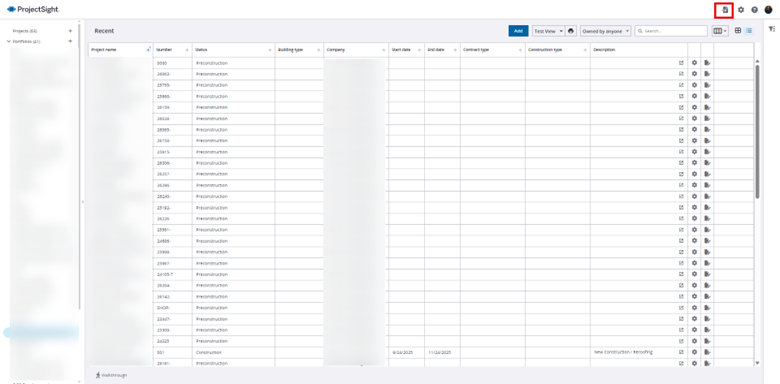
First, go to your portfolio screen to view your active projects. In the top right corner, select the “Import Projects” button.
That action will display your ERP jobs currently unlinked to projects in ProjectSight (important note: this process will not work if ProjectSight and your ERP are not integrated).
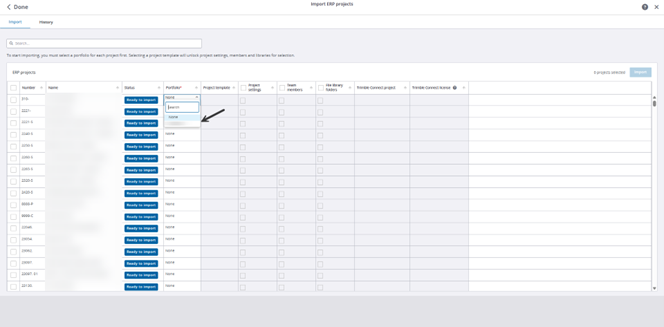
Once you have identified the ERP job you wish to link to ProjectSight, select the box in the Portfolio column next to that job. You should see your portfolio in that dropdown. Once you have selected the right portfolio, simply complete the remaining information like your template, settings, team members. There is also a History tab in the lefthand corner that will show you the timeline of your imports as well as the users who imported those jobs.
After selecting “Import,” the chosen projects will be loaded into ProjectSight and you can move onto your work in that environment.
Trimble is always adding new features and updating existing tools to provide a better experience for their end users. For more information on this and other updates, or if you have any questions about ProjectSight, please visit our website – ConstrucTech Consulting – and Book a Call with one of our consultants
Last month, Trimble released a new feature intended to expedite the process of importing Vista or Spectrum jobs into ProjectSight. Instead of creating a new project from scratch in ProjectSight and navigating all the way to project settings to connect an already existing job in a user’s linked ERP, those same users can import dozens of jobs at once without manually creating new projects.
First, go to your portfolio screen to view your active projects. In the top right corner, select the “Import Projects” button.
That action will display your ERP jobs currently unlinked to projects in ProjectSight (important note: this process will not work if ProjectSight and your ERP are not integrated).
Once you have identified the ERP job you wish to link to ProjectSight, select the box in the Portfolio column next to that job. You should see your portfolio in that dropdown. Once you have selected the right portfolio, simply complete the remaining information like your template, settings, team members. There is also a History tab in the lefthand corner that will show you the timeline of your imports as well as the users who imported those jobs.
After selecting “Import,” the chosen projects will be loaded into ProjectSight and you can move onto your work in that environment.
Trimble is always adding new features and updating existing tools to provide a better experience for their end users. For more information on this and other updates, or if you have any questions about ProjectSight, please visit our website – ConstrucTech Consulting – and Book a Call with one of our consultants
Last month, Trimble released a new feature intended to expedite the process of importing Vista or Spectrum jobs into ProjectSight. Instead of creating a new project from scratch in ProjectSight and navigating all the way to project settings to connect an already existing job in a user’s linked ERP, those same users can import dozens of jobs at once without manually creating new projects.
First, go to your portfolio screen to view your active projects. In the top right corner, select the “Import Projects” button.
That action will display your ERP jobs currently unlinked to projects in ProjectSight (important note: this process will not work if ProjectSight and your ERP are not integrated).
Once you have identified the ERP job you wish to link to ProjectSight, select the box in the Portfolio column next to that job. You should see your portfolio in that dropdown. Once you have selected the right portfolio, simply complete the remaining information like your template, settings, team members. There is also a History tab in the lefthand corner that will show you the timeline of your imports as well as the users who imported those jobs.
After selecting “Import,” the chosen projects will be loaded into ProjectSight and you can move onto your work in that environment.
Trimble is always adding new features and updating existing tools to provide a better experience for their end users. For more information on this and other updates, or if you have any questions about ProjectSight, please visit our website – ConstrucTech Consulting – and Book a Call with one of our consultants


Get Started
Take your construction company to the next level. Schedule your initial free consultation and analysis.