
Tip Tuesday
Trimble Vista PR Check Replacement
PR Check Replacement - Quickly & Easily replace a lost, damaged, or voided paycheck in Trimble Vista

How to Use the PR Check Replacement Form in Vista Payroll
Replacing a payroll check for a closed pay period doesn’t always require reopening the period or rerunning payroll updates. The PR Check Replacement Form in Vista Payroll allows you to issue a replacement check while preserving the original payment details and avoiding unnecessary payroll processing.
In this guide, we’ll explain when to use the form, how to process a replacement check, and what to keep in mind before getting started.
When Should You Use the PR Check Replacement Form?
Use the PR Check Replacement Form when you need to replace a check from a closed pay period and no changes are needed to the employee’s timecard values, deductions, liabilities, or payment information.
Before using the form, ensure that:
- The pay period is closed.
- All final payroll updates have been completed.
- No changes are needed to the original payroll calculations or payment information.
- The original payment has not been cleared or voided and does not have a payment method of “X-No Pay”.
If any payroll values or payment details need to be corrected, you must reopen the pay period before making those changes.
How to Replace a Check Using the Form
Follow these steps to issue a replacement check in Vista Payroll.
Step 1: Open the PR Check Replacement Form
Navigate to the PR Check Replacement Form in Vista Payroll. Confirm that the applicable pay period is closed and that all final updates have been completed before proceeding.
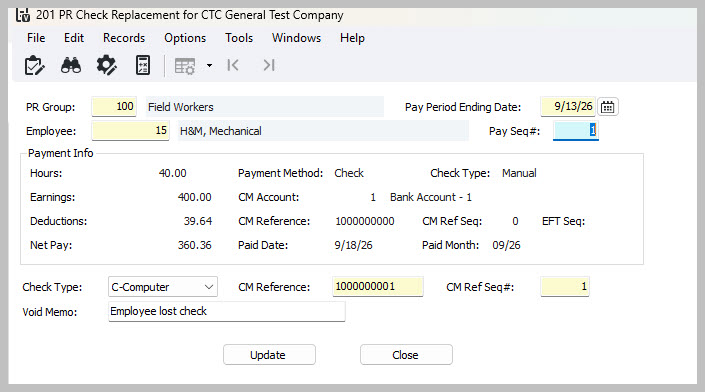
Step 2: Enter the Original Payment Details
Enter the following information to identify the original payment:
- Payroll Group: The payroll group associated with the employee’s payment.
- Pay Period Ending Date: The ending date of the original pay period.
- Employee: The employee receiving the replacement check.
- Pay Sequence: The pay sequence number associated with the original payment.
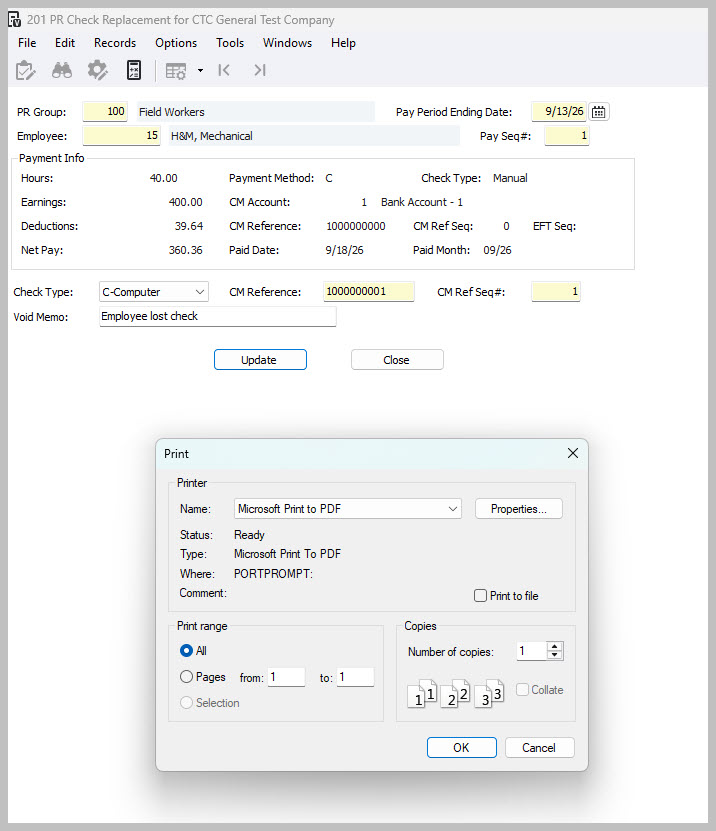
Once these details are entered, the employee’s original payment information will display in the Payment Info section.
Step 3: Review the Payment Information
Carefully review the displayed payment details before issuing the replacement check. The Payment Info section includes:
• Hours and earnings
• Deductions and net pay
• Payment method
• CM account
• Paid date and month
Verify that the information matches the payment you intend to replace. Because the original payment will be voided, it is important to confirm that you have selected the correct employee and payment.
Step 4: Enter the Replacement Check Details
Provide a brief memo explaining the reason for the replacement check. Then enter the replacement payment details:
- Check Type: Specify whether the replacement is a manual or computer-generated check.
- Replacement Check Number: Enter the number assigned to the new check.
- Check Sequence Number: Enter the appropriate check sequence number.
Review all entries for accuracy before continuing.
Step 5: Click Update
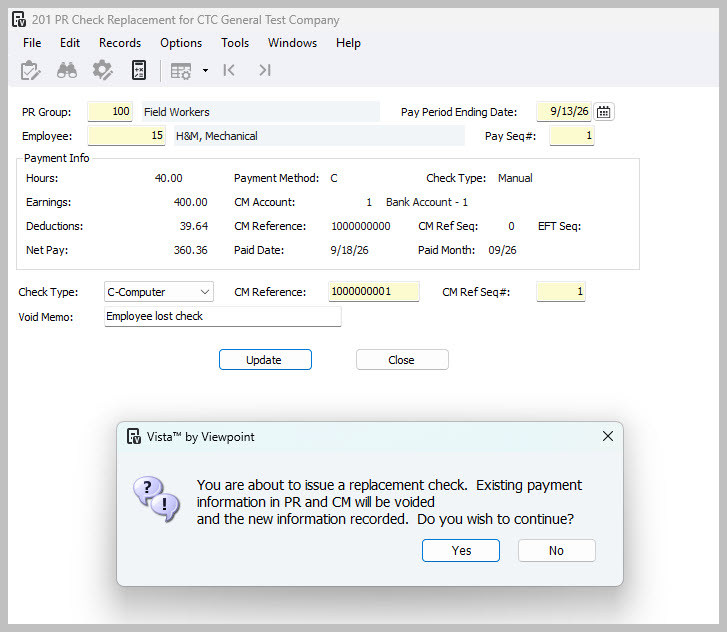
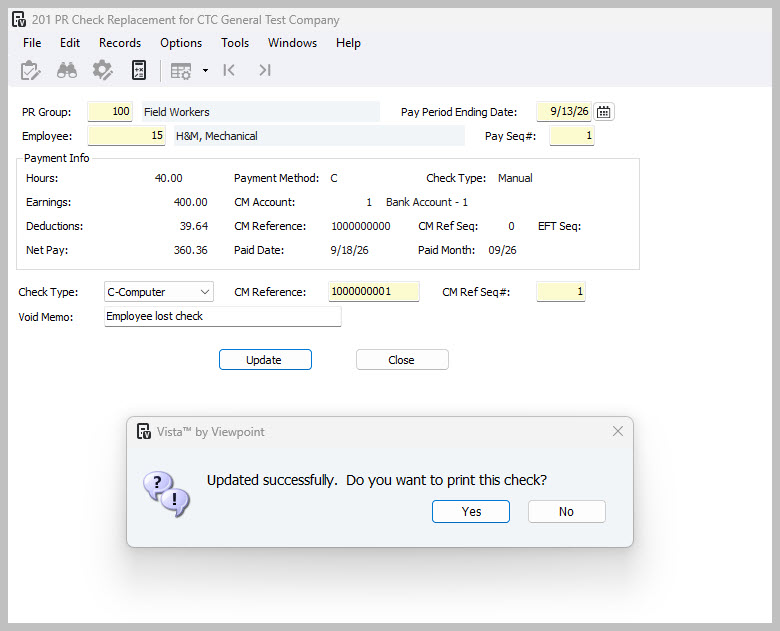
After verifying the original payment information and replacement check details, click Update to process the replacement.
The replacement check will be printed using the same check date as the original payment. The original payment information will be voided, and the replacement payment information will be updated directly to Payroll (PR) and Cash Management (CM).
No batch processing is required.
What Happens When You Process a Replacement Check?
The PR Check Replacement Form streamlines the replacement process by updating the relevant payment records without requiring the entire pay period to be reopened.
Here is what happens when the replacement is processed:
• The new check is printed with the original check date.
• The original payment information is voided.
• The replacement payment information is updated to PR and CM online.
• No additional batch needs to be processed.
• No General Ledger (GL) entries are created.
Important: This process affects Cash Management (CM) only. It does not create General Ledger entries.
When Do You Need to Reopen the PayPeriod Instead?
The replacement form is designed for situations where the original payroll calculations and payment details do not need to change. If corrections are required, the pay period must first be reopened through PR Pay Period Control.
Reopening the period may be necessary when you need to:
- Once the pay period is reopened, you can make the necessary corrections. However, use caution when modifying payroll information, particularly if the changes could affect employees who are not receiving replacement checks.
When payroll is reprocessed, deduction and liability amounts are recalculated using the current setup values. These recalculated amounts may differ from the amounts originally paid. All differences between the calculated amounts and paid totals must be resolved before the pay period can be closed again.
Additionally, all ledger updates must be rerun, even if those updates are not otherwise needed or desired.
For this reason, if no payroll corrections are necessary, using the PR Check Replacement Form can help you avoid the additional steps involved in reopening and reprocessing a pay period.
Important Restrictions to Remember
Before processing a replacement check, keep these limitations in mind:
- “X-No Pay” payments are not eligible. A replacement check cannot be issued for a payment with this payment method.
- Cleared payments are not eligible. Payments that have already been cleared cannot be replaced through this form.
- Voided payments are not eligible. You cannot use the form to replace a payment that has already been voided.
Always verify the status of the original payment before attempting toprocess a replacement.
Best Practices for Accurate CheckReplacement
To help ensure a smooth replacement process, follow these best practices:
- Confirm that the pay period is closed and all final updates are complete.
- Verify the employee, pay period ending date, and pay sequence.
- Review all payment details in the Payment Info section.
- Enter an accurate replacement check number and sequence number.
- Include a clear memo documenting the reason for the replacement.
- Confirm that the original payment is eligible for replacement before clicking Update.
Taking these steps helps reduce errors and ensures that the replacement payment is recorded correctly.
Final Thoughts
The PR Check Replacement Form in Vista Payroll provides a straightforward way to replace checks from closed pay periods when no payroll corrections arerequired. By updating the original payment and replacement check informationdirectly in PR and CM, the process eliminates the need to reopen the pay periodor process an additional batch.
Remember: if changes to timecards, deductions, liabilities, or payment information are necessary, reopen the pay period through PR Pay Period Controland complete the required corrections instead.
Use the right process for the situation: If you only need to replace a check,use the PR Check Replacement Form. If payroll information needs to change,reopen and correct the pay period first.
How to Use the PR Check Replacement Form in Vista Payroll
Replacing a payroll check for a closed pay period doesn’t always require reopening the period or rerunning payroll updates. The PR Check Replacement Form in Vista Payroll allows you to issue a replacement check while preserving the original payment details and avoiding unnecessary payroll processing.
In this guide, we’ll explain when to use the form, how to process a replacement check, and what to keep in mind before getting started.
When Should You Use the PR Check Replacement Form?
Use the PR Check Replacement Form when you need to replace a check from a closed pay period and no changes are needed to the employee’s timecard values, deductions, liabilities, or payment information.
Before using the form, ensure that:
- The pay period is closed.
- All final payroll updates have been completed.
- No changes are needed to the original payroll calculations or payment information.
- The original payment has not been cleared or voided and does not have a payment method of “X-No Pay”.
If any payroll values or payment details need to be corrected, you must reopen the pay period before making those changes.
How to Replace a Check Using the Form
Follow these steps to issue a replacement check in Vista Payroll.
Step 1: Open the PR Check Replacement Form
Navigate to the PR Check Replacement Form in Vista Payroll. Confirm that the applicable pay period is closed and that all final updates have been completed before proceeding.
Step 2: Enter the Original Payment Details
Enter the following information to identify the original payment:
- Payroll Group: The payroll group associated with the employee’s payment.
- Pay Period Ending Date: The ending date of the original pay period.
- Employee: The employee receiving the replacement check.
- Pay Sequence: The pay sequence number associated with the original payment.
Once these details are entered, the employee’s original payment information will display in the Payment Info section.
Step 3: Review the Payment Information
Carefully review the displayed payment details before issuing the replacement check. The Payment Info section includes:
• Hours and earnings
• Deductions and net pay
• Payment method
• CM account
• Paid date and month
Verify that the information matches the payment you intend to replace. Because the original payment will be voided, it is important to confirm that you have selected the correct employee and payment.
Step 4: Enter the Replacement Check Details
Provide a brief memo explaining the reason for the replacement check. Then enter the replacement payment details:
- Check Type: Specify whether the replacement is a manual or computer-generated check.
- Replacement Check Number: Enter the number assigned to the new check.
- Check Sequence Number: Enter the appropriate check sequence number.
Review all entries for accuracy before continuing.
Step 5: Click Update
After verifying the original payment information and replacement check details, click Update to process the replacement.
The replacement check will be printed using the same check date as the original payment. The original payment information will be voided, and the replacement payment information will be updated directly to Payroll (PR) and Cash Management (CM).
No batch processing is required.
What Happens When You Process a Replacement Check?
The PR Check Replacement Form streamlines the replacement process by updating the relevant payment records without requiring the entire pay period to be reopened.
Here is what happens when the replacement is processed:
• The new check is printed with the original check date.
• The original payment information is voided.
• The replacement payment information is updated to PR and CM online.
• No additional batch needs to be processed.
• No General Ledger (GL) entries are created.
Important: This process affects Cash Management (CM) only. It does not create General Ledger entries.
When Do You Need to Reopen the PayPeriod Instead?
The replacement form is designed for situations where the original payroll calculations and payment details do not need to change. If corrections are required, the pay period must first be reopened through PR Pay Period Control.
Reopening the period may be necessary when you need to:
- Once the pay period is reopened, you can make the necessary corrections. However, use caution when modifying payroll information, particularly if the changes could affect employees who are not receiving replacement checks.
When payroll is reprocessed, deduction and liability amounts are recalculated using the current setup values. These recalculated amounts may differ from the amounts originally paid. All differences between the calculated amounts and paid totals must be resolved before the pay period can be closed again.
Additionally, all ledger updates must be rerun, even if those updates are not otherwise needed or desired.
For this reason, if no payroll corrections are necessary, using the PR Check Replacement Form can help you avoid the additional steps involved in reopening and reprocessing a pay period.
Important Restrictions to Remember
Before processing a replacement check, keep these limitations in mind:
- “X-No Pay” payments are not eligible. A replacement check cannot be issued for a payment with this payment method.
- Cleared payments are not eligible. Payments that have already been cleared cannot be replaced through this form.
- Voided payments are not eligible. You cannot use the form to replace a payment that has already been voided.
Always verify the status of the original payment before attempting toprocess a replacement.
Best Practices for Accurate CheckReplacement
To help ensure a smooth replacement process, follow these best practices:
- Confirm that the pay period is closed and all final updates are complete.
- Verify the employee, pay period ending date, and pay sequence.
- Review all payment details in the Payment Info section.
- Enter an accurate replacement check number and sequence number.
- Include a clear memo documenting the reason for the replacement.
- Confirm that the original payment is eligible for replacement before clicking Update.
Taking these steps helps reduce errors and ensures that the replacement payment is recorded correctly.
Final Thoughts
The PR Check Replacement Form in Vista Payroll provides a straightforward way to replace checks from closed pay periods when no payroll corrections arerequired. By updating the original payment and replacement check informationdirectly in PR and CM, the process eliminates the need to reopen the pay periodor process an additional batch.
Remember: if changes to timecards, deductions, liabilities, or payment information are necessary, reopen the pay period through PR Pay Period Controland complete the required corrections instead.
Use the right process for the situation: If you only need to replace a check,use the PR Check Replacement Form. If payroll information needs to change,reopen and correct the pay period first.
How to Use the PR Check Replacement Form in Vista Payroll
Replacing a payroll check for a closed pay period doesn’t always require reopening the period or rerunning payroll updates. The PR Check Replacement Form in Vista Payroll allows you to issue a replacement check while preserving the original payment details and avoiding unnecessary payroll processing.
In this guide, we’ll explain when to use the form, how to process a replacement check, and what to keep in mind before getting started.
When Should You Use the PR Check Replacement Form?
Use the PR Check Replacement Form when you need to replace a check from a closed pay period and no changes are needed to the employee’s timecard values, deductions, liabilities, or payment information.
Before using the form, ensure that:
- The pay period is closed.
- All final payroll updates have been completed.
- No changes are needed to the original payroll calculations or payment information.
- The original payment has not been cleared or voided and does not have a payment method of “X-No Pay”.
If any payroll values or payment details need to be corrected, you must reopen the pay period before making those changes.
How to Replace a Check Using the Form
Follow these steps to issue a replacement check in Vista Payroll.
Step 1: Open the PR Check Replacement Form
Navigate to the PR Check Replacement Form in Vista Payroll. Confirm that the applicable pay period is closed and that all final updates have been completed before proceeding.
Step 2: Enter the Original Payment Details
Enter the following information to identify the original payment:
- Payroll Group: The payroll group associated with the employee’s payment.
- Pay Period Ending Date: The ending date of the original pay period.
- Employee: The employee receiving the replacement check.
- Pay Sequence: The pay sequence number associated with the original payment.
Once these details are entered, the employee’s original payment information will display in the Payment Info section.
Step 3: Review the Payment Information
Carefully review the displayed payment details before issuing the replacement check. The Payment Info section includes:
• Hours and earnings
• Deductions and net pay
• Payment method
• CM account
• Paid date and month
Verify that the information matches the payment you intend to replace. Because the original payment will be voided, it is important to confirm that you have selected the correct employee and payment.
Step 4: Enter the Replacement Check Details
Provide a brief memo explaining the reason for the replacement check. Then enter the replacement payment details:
- Check Type: Specify whether the replacement is a manual or computer-generated check.
- Replacement Check Number: Enter the number assigned to the new check.
- Check Sequence Number: Enter the appropriate check sequence number.
Review all entries for accuracy before continuing.
Step 5: Click Update
After verifying the original payment information and replacement check details, click Update to process the replacement.
The replacement check will be printed using the same check date as the original payment. The original payment information will be voided, and the replacement payment information will be updated directly to Payroll (PR) and Cash Management (CM).
No batch processing is required.
What Happens When You Process a Replacement Check?
The PR Check Replacement Form streamlines the replacement process by updating the relevant payment records without requiring the entire pay period to be reopened.
Here is what happens when the replacement is processed:
• The new check is printed with the original check date.
• The original payment information is voided.
• The replacement payment information is updated to PR and CM online.
• No additional batch needs to be processed.
• No General Ledger (GL) entries are created.
Important: This process affects Cash Management (CM) only. It does not create General Ledger entries.
When Do You Need to Reopen the PayPeriod Instead?
The replacement form is designed for situations where the original payroll calculations and payment details do not need to change. If corrections are required, the pay period must first be reopened through PR Pay Period Control.
Reopening the period may be necessary when you need to:
- Once the pay period is reopened, you can make the necessary corrections. However, use caution when modifying payroll information, particularly if the changes could affect employees who are not receiving replacement checks.
When payroll is reprocessed, deduction and liability amounts are recalculated using the current setup values. These recalculated amounts may differ from the amounts originally paid. All differences between the calculated amounts and paid totals must be resolved before the pay period can be closed again.
Additionally, all ledger updates must be rerun, even if those updates are not otherwise needed or desired.
For this reason, if no payroll corrections are necessary, using the PR Check Replacement Form can help you avoid the additional steps involved in reopening and reprocessing a pay period.
Important Restrictions to Remember
Before processing a replacement check, keep these limitations in mind:
- “X-No Pay” payments are not eligible. A replacement check cannot be issued for a payment with this payment method.
- Cleared payments are not eligible. Payments that have already been cleared cannot be replaced through this form.
- Voided payments are not eligible. You cannot use the form to replace a payment that has already been voided.
Always verify the status of the original payment before attempting toprocess a replacement.
Best Practices for Accurate CheckReplacement
To help ensure a smooth replacement process, follow these best practices:
- Confirm that the pay period is closed and all final updates are complete.
- Verify the employee, pay period ending date, and pay sequence.
- Review all payment details in the Payment Info section.
- Enter an accurate replacement check number and sequence number.
- Include a clear memo documenting the reason for the replacement.
- Confirm that the original payment is eligible for replacement before clicking Update.
Taking these steps helps reduce errors and ensures that the replacement payment is recorded correctly.
Final Thoughts
The PR Check Replacement Form in Vista Payroll provides a straightforward way to replace checks from closed pay periods when no payroll corrections arerequired. By updating the original payment and replacement check informationdirectly in PR and CM, the process eliminates the need to reopen the pay periodor process an additional batch.
Remember: if changes to timecards, deductions, liabilities, or payment information are necessary, reopen the pay period through PR Pay Period Controland complete the required corrections instead.
Use the right process for the situation: If you only need to replace a check,use the PR Check Replacement Form. If payroll information needs to change,reopen and correct the pay period first.


Get Started
Take your construction company to the next level. Schedule your initial free consultation and analysis.