
Tip Tuesday
VA Tab Security Form
How to use the VA Tab Security Form in VA Form Security


Tab Security Form
Use this form to set up security by tab. In order to set tab security, you must apply tab access level security for the specified form in VA Form Security.
Tab security access levels work with form record permissions to determine how users interact with the form. Tab security levels determine whether a user can access the tab, while the form record permissions determine whether the user can add, edit, or delete records from the tab.
The following list briefly discusses each access level.
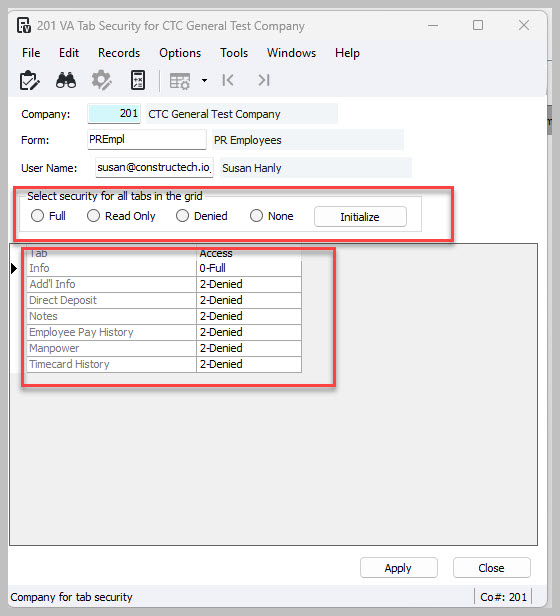
- Full – Use this option to grant full access to the tab.
- Read Only – Use this option to grant read-only access to the tab.
- Denied – Use this option to deny access to the tab and hide the tab from the user.
- None – This option does not set any specific access to the form.
Note: Whenever you add, change, or delete a record in this form, the system creates an audit record in the HQMA (HQ Master Audit) table. You can view a list of audit records by running the HQ Audit Detail report for the DDTS table.
Set Tab Security Access
The following instructions detail how to apply tab security.
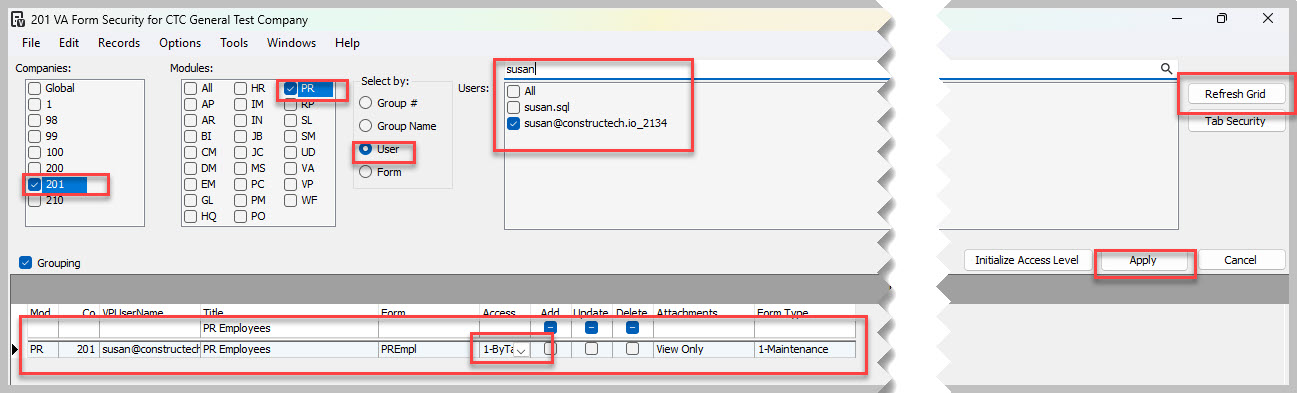
- From the VA Form Security form, filter for the appropriate records.
- Select 1-ByTab for the applicable record(s) in the Access column of the grid.
- Select Apply.
- Select the record in the grid.
- Select the Tab Security button.The VA Tab Security form displays.
- Set the access level for each tab or initialize security for all tabs in the grid.
- Click Apply.
- Close VA Tab Security.
- Apply additional form security settings or close VA Form Security.
If you have any questions, ConstrucTech Consulting is here to help. please visit our website – ConstrucTech Consulting – and Book a Call with one of our consultants.
Tab Security Form
Use this form to set up security by tab. In order to set tab security, you must apply tab access level security for the specified form in VA Form Security.
Tab security access levels work with form record permissions to determine how users interact with the form. Tab security levels determine whether a user can access the tab, while the form record permissions determine whether the user can add, edit, or delete records from the tab.
The following list briefly discusses each access level.
- Full – Use this option to grant full access to the tab.
- Read Only – Use this option to grant read-only access to the tab.
- Denied – Use this option to deny access to the tab and hide the tab from the user.
- None – This option does not set any specific access to the form.
Note: Whenever you add, change, or delete a record in this form, the system creates an audit record in the HQMA (HQ Master Audit) table. You can view a list of audit records by running the HQ Audit Detail report for the DDTS table.
Set Tab Security Access
The following instructions detail how to apply tab security.
- From the VA Form Security form, filter for the appropriate records.
- Select 1-ByTab for the applicable record(s) in the Access column of the grid.
- Select Apply.
- Select the record in the grid.
- Select the Tab Security button.The VA Tab Security form displays.
- Set the access level for each tab or initialize security for all tabs in the grid.
- Click Apply.
- Close VA Tab Security.
- Apply additional form security settings or close VA Form Security.
If you have any questions, ConstrucTech Consulting is here to help. please visit our website – ConstrucTech Consulting – and Book a Call with one of our consultants.
Tab Security Form
Use this form to set up security by tab. In order to set tab security, you must apply tab access level security for the specified form in VA Form Security.
Tab security access levels work with form record permissions to determine how users interact with the form. Tab security levels determine whether a user can access the tab, while the form record permissions determine whether the user can add, edit, or delete records from the tab.
The following list briefly discusses each access level.
- Full – Use this option to grant full access to the tab.
- Read Only – Use this option to grant read-only access to the tab.
- Denied – Use this option to deny access to the tab and hide the tab from the user.
- None – This option does not set any specific access to the form.
Note: Whenever you add, change, or delete a record in this form, the system creates an audit record in the HQMA (HQ Master Audit) table. You can view a list of audit records by running the HQ Audit Detail report for the DDTS table.
Set Tab Security Access
The following instructions detail how to apply tab security.
- From the VA Form Security form, filter for the appropriate records.
- Select 1-ByTab for the applicable record(s) in the Access column of the grid.
- Select Apply.
- Select the record in the grid.
- Select the Tab Security button.The VA Tab Security form displays.
- Set the access level for each tab or initialize security for all tabs in the grid.
- Click Apply.
- Close VA Tab Security.
- Apply additional form security settings or close VA Form Security.
If you have any questions, ConstrucTech Consulting is here to help. please visit our website – ConstrucTech Consulting – and Book a Call with one of our consultants.


Get Started
Take your construction company to the next level. Schedule your initial free consultation and analysis.