
Tip Tuesday
Voiding and Reissuing a Payroll Payment in a Closed Pay Period
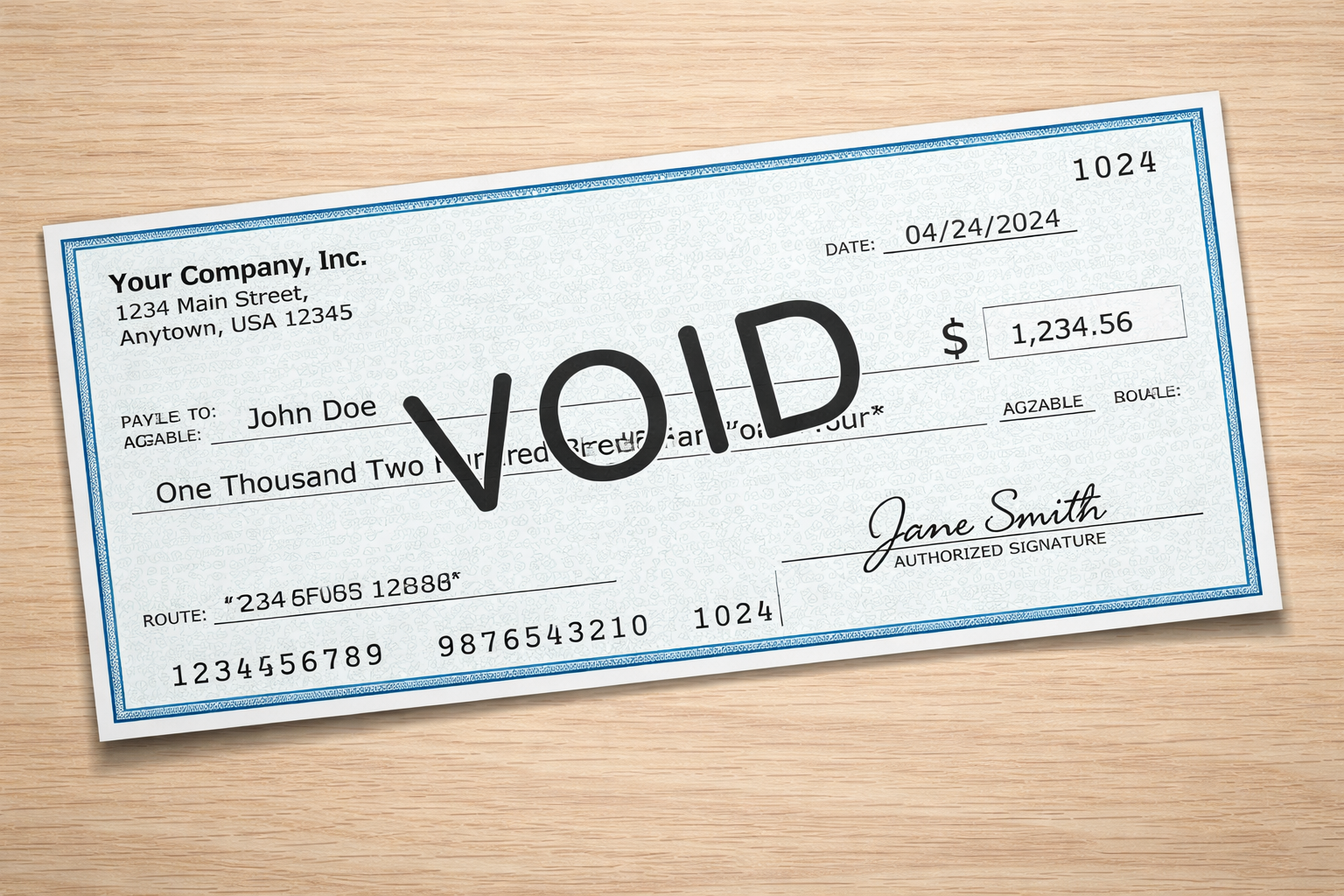

Voiding and Reissuing a Payroll Payment in a Closed Pay Period
Closing a payroll period doesn’t always mean the work is finished. Occasionally, a payroll check needs to be voided and reissued after the pay period—and even the month—has already been closed. Unlike the Accounts Payable module, the Payroll module does not include a built-in process to void a payroll check from a prior, closed month.
The good news? With the right steps, you can still make the correction accurately and stay in balance.
In this post, we’ll walk through a practical, step-by-step approach to voiding and (if needed) reissuing a payroll check from a closed pay period.
Before You Begin
Before making any payroll corrections, be sure to gather a copy of the payroll register from the original pay period. You’ll use this report to verify that earnings, deductions, liabilities, and net pay match exactly throughout the process.
High-Level Overview
To correct a payroll check from a closed period, you’ll work in the current pay period and create additional pay sequences:
- Pay Sequence #2 – Used to reverse (void) the original check
- Pay Sequence #3 – Used to reissue the corrected check (if required)
Tip: If you only need to void the check and not reissue it, you can stop after completing Pay Sequence #2.
Step 1: Reverse (Void) the Original Check – Pay Sequence #2
Create Reversing Timecards
- Navigate to Payroll > Programs > Timecard Entry.
- Create a new timecard batch for the current batch month and pay period using Pay Sequence #2.
- Select File > Add Timecards.
- Under Options, choose Initialize reversing timecards from another payroll.
- Enter the Period Ending Date of the incorrect payroll check.
- Confirm the timecards will post to Pay Sequence #2.
- Filter for the employee who needs correction and add the records.
The system will automatically create negative timecard entries, reversing the original payroll amounts.
Process the Reversal
- Process and post the timecard batch.
- Go to PR Employee Pay Sequence Control and process the employee.
- Review earnings, deductions, and liabilities carefully:
- All amounts should appear as negative values.
- Totals should exactly match the original payroll register, just reversed.
- If any amounts differ, select Override and enter the correct negative values.
Important: Routine-based deductions (such as Federal or State Withholding) do not automatically calculate on negative earnings. These must be manually overridden to match the original amounts.
Pre-Tax Deductions Note: If the deduction is set to “Calculate on Pay Sequence 1 Only” in PR Deductions/Liabilities, you’ll need to temporarily uncheck this option so the deduction can process correctly.
Finalize the Void
- On the Info tab:
- Change the Check Type to Manual.
- Enter the original check number in the CM Reference field.
- Set the CM Ref Seq # to a number higher than the original.
- Use the current pay period’s paid date and month.
- Click Save, then Process the sequence.
Once the ledger is updated, CM will reflect a negative check equal to the original check amount—officially voiding the payment.
At this point, the void process is complete. If the check does not need to be reissued, you can stop here.
Step 2: Reissue the Check (If Needed) – Pay Sequence #3
If the employee needs a replacement check, continue with the steps below.
- Go to Payroll > PR Timecard Entry.
- Enter the PR End Date for the current pay period and select Pay Sequence #3.
- Choose File > Add Timecards and select Initialize reversing timecards from another payroll.
- Enter the original Period Ending Date, post to Pay Sequence #3, and filter by the employee number.
- Add the entries to the batch. When prompted to add additional employees, select No.
The system will again create reversing (negative) timecard entries.
Adjust and Process the Reissue
- Override the negative hours to positive hours and confirm all amounts are correct.
- Process and post the timecard batch.
- Go to PR Employee Pay Sequence Control and process the employee.
- Select the appropriate payment method:
- Check (C-Check) with Check Type: C-Computer, or
- EFT
- Review earnings, deductions, and liabilities to ensure they match the original payroll register.
- Override any routine-based deductions as needed.
- Print the check for Pay Sequence #3 or run PR EFT Payments.
Final Thoughts
While correcting payroll after a period is closed can feel intimidating, following a structured approach ensures accuracy, compliance, and clean audit trails. By using reversing pay sequences and carefully validating against the original payroll register, you can confidently void and reissue payroll checks—even after the books are closed.
If payroll corrections are a frequent challenge, consider documenting this workflow internally or sharing it with your payroll team to reduce errors and save time in the future.
If you need assistance with this process, visit our website by clicking here.
Voiding and Reissuing a Payroll Payment in a Closed Pay Period
Closing a payroll period doesn’t always mean the work is finished. Occasionally, a payroll check needs to be voided and reissued after the pay period—and even the month—has already been closed. Unlike the Accounts Payable module, the Payroll module does not include a built-in process to void a payroll check from a prior, closed month.
The good news? With the right steps, you can still make the correction accurately and stay in balance.
In this post, we’ll walk through a practical, step-by-step approach to voiding and (if needed) reissuing a payroll check from a closed pay period.
Before You Begin
Before making any payroll corrections, be sure to gather a copy of the payroll register from the original pay period. You’ll use this report to verify that earnings, deductions, liabilities, and net pay match exactly throughout the process.
High-Level Overview
To correct a payroll check from a closed period, you’ll work in the current pay period and create additional pay sequences:
- Pay Sequence #2 – Used to reverse (void) the original check
- Pay Sequence #3 – Used to reissue the corrected check (if required)
Tip: If you only need to void the check and not reissue it, you can stop after completing Pay Sequence #2.
Step 1: Reverse (Void) the Original Check – Pay Sequence #2
Create Reversing Timecards
- Navigate to Payroll > Programs > Timecard Entry.
- Create a new timecard batch for the current batch month and pay period using Pay Sequence #2.
- Select File > Add Timecards.
- Under Options, choose Initialize reversing timecards from another payroll.
- Enter the Period Ending Date of the incorrect payroll check.
- Confirm the timecards will post to Pay Sequence #2.
- Filter for the employee who needs correction and add the records.
The system will automatically create negative timecard entries, reversing the original payroll amounts.
Process the Reversal
- Process and post the timecard batch.
- Go to PR Employee Pay Sequence Control and process the employee.
- Review earnings, deductions, and liabilities carefully:
- All amounts should appear as negative values.
- Totals should exactly match the original payroll register, just reversed.
- If any amounts differ, select Override and enter the correct negative values.
Important: Routine-based deductions (such as Federal or State Withholding) do not automatically calculate on negative earnings. These must be manually overridden to match the original amounts.
Pre-Tax Deductions Note: If the deduction is set to “Calculate on Pay Sequence 1 Only” in PR Deductions/Liabilities, you’ll need to temporarily uncheck this option so the deduction can process correctly.
Finalize the Void
- On the Info tab:
- Change the Check Type to Manual.
- Enter the original check number in the CM Reference field.
- Set the CM Ref Seq # to a number higher than the original.
- Use the current pay period’s paid date and month.
- Click Save, then Process the sequence.
Once the ledger is updated, CM will reflect a negative check equal to the original check amount—officially voiding the payment.
At this point, the void process is complete. If the check does not need to be reissued, you can stop here.
Step 2: Reissue the Check (If Needed) – Pay Sequence #3
If the employee needs a replacement check, continue with the steps below.
- Go to Payroll > PR Timecard Entry.
- Enter the PR End Date for the current pay period and select Pay Sequence #3.
- Choose File > Add Timecards and select Initialize reversing timecards from another payroll.
- Enter the original Period Ending Date, post to Pay Sequence #3, and filter by the employee number.
- Add the entries to the batch. When prompted to add additional employees, select No.
The system will again create reversing (negative) timecard entries.
Adjust and Process the Reissue
- Override the negative hours to positive hours and confirm all amounts are correct.
- Process and post the timecard batch.
- Go to PR Employee Pay Sequence Control and process the employee.
- Select the appropriate payment method:
- Check (C-Check) with Check Type: C-Computer, or
- EFT
- Review earnings, deductions, and liabilities to ensure they match the original payroll register.
- Override any routine-based deductions as needed.
- Print the check for Pay Sequence #3 or run PR EFT Payments.
Final Thoughts
While correcting payroll after a period is closed can feel intimidating, following a structured approach ensures accuracy, compliance, and clean audit trails. By using reversing pay sequences and carefully validating against the original payroll register, you can confidently void and reissue payroll checks—even after the books are closed.
If payroll corrections are a frequent challenge, consider documenting this workflow internally or sharing it with your payroll team to reduce errors and save time in the future.
If you need assistance with this process, visit our website by clicking here.
Voiding and Reissuing a Payroll Payment in a Closed Pay Period
Closing a payroll period doesn’t always mean the work is finished. Occasionally, a payroll check needs to be voided and reissued after the pay period—and even the month—has already been closed. Unlike the Accounts Payable module, the Payroll module does not include a built-in process to void a payroll check from a prior, closed month.
The good news? With the right steps, you can still make the correction accurately and stay in balance.
In this post, we’ll walk through a practical, step-by-step approach to voiding and (if needed) reissuing a payroll check from a closed pay period.
Before You Begin
Before making any payroll corrections, be sure to gather a copy of the payroll register from the original pay period. You’ll use this report to verify that earnings, deductions, liabilities, and net pay match exactly throughout the process.
High-Level Overview
To correct a payroll check from a closed period, you’ll work in the current pay period and create additional pay sequences:
- Pay Sequence #2 – Used to reverse (void) the original check
- Pay Sequence #3 – Used to reissue the corrected check (if required)
Tip: If you only need to void the check and not reissue it, you can stop after completing Pay Sequence #2.
Step 1: Reverse (Void) the Original Check – Pay Sequence #2
Create Reversing Timecards
- Navigate to Payroll > Programs > Timecard Entry.
- Create a new timecard batch for the current batch month and pay period using Pay Sequence #2.
- Select File > Add Timecards.
- Under Options, choose Initialize reversing timecards from another payroll.
- Enter the Period Ending Date of the incorrect payroll check.
- Confirm the timecards will post to Pay Sequence #2.
- Filter for the employee who needs correction and add the records.
The system will automatically create negative timecard entries, reversing the original payroll amounts.
Process the Reversal
- Process and post the timecard batch.
- Go to PR Employee Pay Sequence Control and process the employee.
- Review earnings, deductions, and liabilities carefully:
- All amounts should appear as negative values.
- Totals should exactly match the original payroll register, just reversed.
- If any amounts differ, select Override and enter the correct negative values.
Important: Routine-based deductions (such as Federal or State Withholding) do not automatically calculate on negative earnings. These must be manually overridden to match the original amounts.
Pre-Tax Deductions Note: If the deduction is set to “Calculate on Pay Sequence 1 Only” in PR Deductions/Liabilities, you’ll need to temporarily uncheck this option so the deduction can process correctly.
Finalize the Void
- On the Info tab:
- Change the Check Type to Manual.
- Enter the original check number in the CM Reference field.
- Set the CM Ref Seq # to a number higher than the original.
- Use the current pay period’s paid date and month.
- Click Save, then Process the sequence.
Once the ledger is updated, CM will reflect a negative check equal to the original check amount—officially voiding the payment.
At this point, the void process is complete. If the check does not need to be reissued, you can stop here.
Step 2: Reissue the Check (If Needed) – Pay Sequence #3
If the employee needs a replacement check, continue with the steps below.
- Go to Payroll > PR Timecard Entry.
- Enter the PR End Date for the current pay period and select Pay Sequence #3.
- Choose File > Add Timecards and select Initialize reversing timecards from another payroll.
- Enter the original Period Ending Date, post to Pay Sequence #3, and filter by the employee number.
- Add the entries to the batch. When prompted to add additional employees, select No.
The system will again create reversing (negative) timecard entries.
Adjust and Process the Reissue
- Override the negative hours to positive hours and confirm all amounts are correct.
- Process and post the timecard batch.
- Go to PR Employee Pay Sequence Control and process the employee.
- Select the appropriate payment method:
- Check (C-Check) with Check Type: C-Computer, or
- EFT
- Review earnings, deductions, and liabilities to ensure they match the original payroll register.
- Override any routine-based deductions as needed.
- Print the check for Pay Sequence #3 or run PR EFT Payments.
Final Thoughts
While correcting payroll after a period is closed can feel intimidating, following a structured approach ensures accuracy, compliance, and clean audit trails. By using reversing pay sequences and carefully validating against the original payroll register, you can confidently void and reissue payroll checks—even after the books are closed.
If payroll corrections are a frequent challenge, consider documenting this workflow internally or sharing it with your payroll team to reduce errors and save time in the future.
If you need assistance with this process, visit our website by clicking here.


Get Started
Take your construction company to the next level. Schedule your initial free consultation and analysis.